> ## Documentation Index
> Fetch the complete documentation index at: https://dragonwingdocs-candidate.qualcomm.com/llms.txt
> Use this file to discover all available pages before exploring further.
# Resolve USB Driver Conflicts
> Resolve USB driver conflicts that prevent Qualcomm® Launcher from flashing your device.
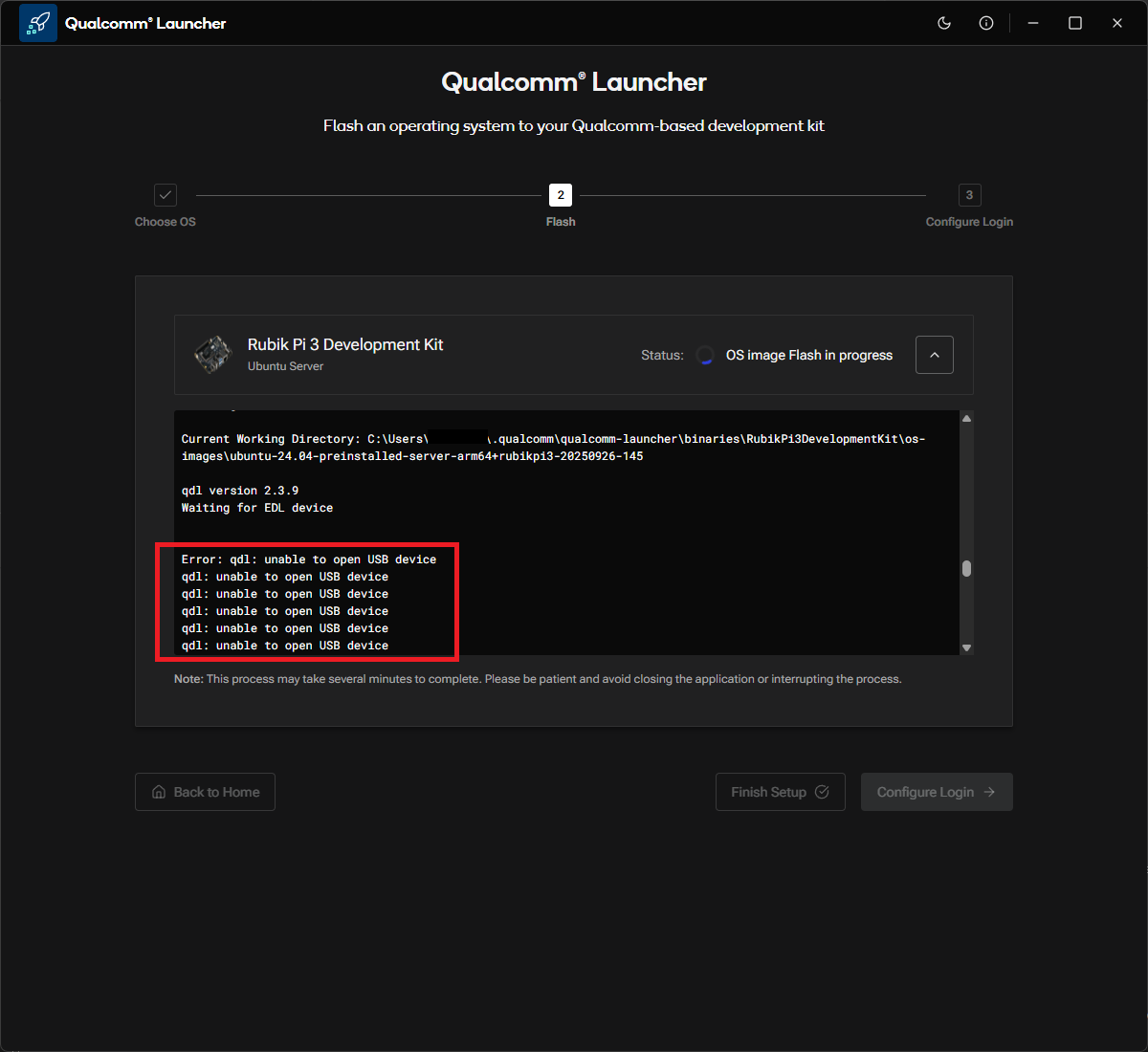
On some Windows hosts, an incorrect USB driver can interfere with the flashing process in Qualcomm® Launcher, causing repeated `qdl: unable to open USB device` errors.
 This can happen with various third-party drivers. The steps below use
third-party QDLoader driver as a representative example, but the resolution
applies broadly.
***
## Resolution steps
Right-click the **Start** button and select **Device Manager**.
This can happen with various third-party drivers. The steps below use
third-party QDLoader driver as a representative example, but the resolution
applies broadly.
***
## Resolution steps
Right-click the **Start** button and select **Device Manager**.
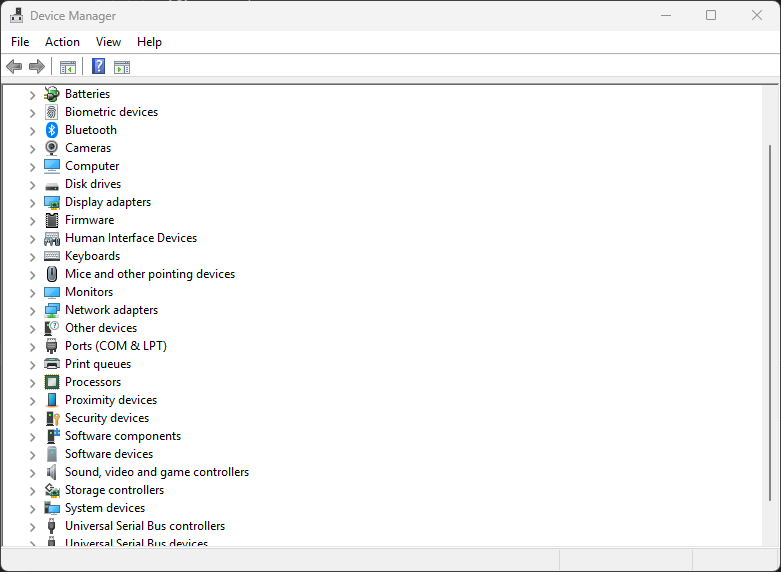 Expand **Ports (COM & LPT)** and find the third-party **QDLoader 9008** entry.
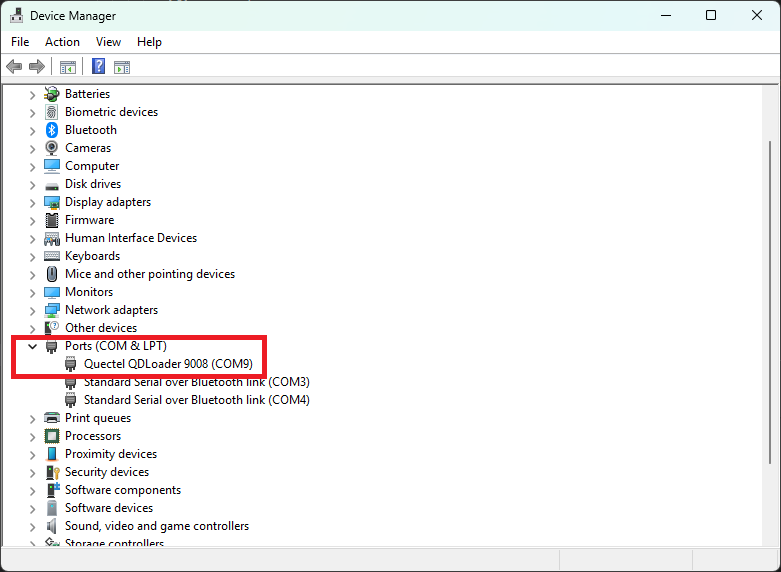 Right-click the third-party **QDLoader 9008** entry and select **Properties**.
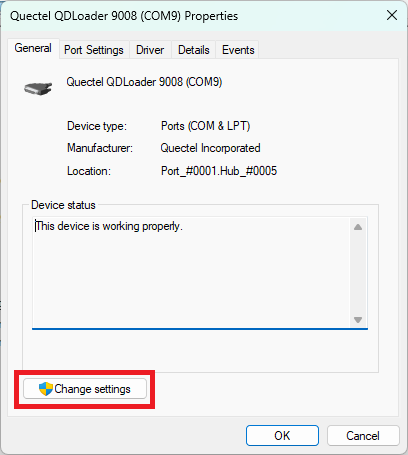
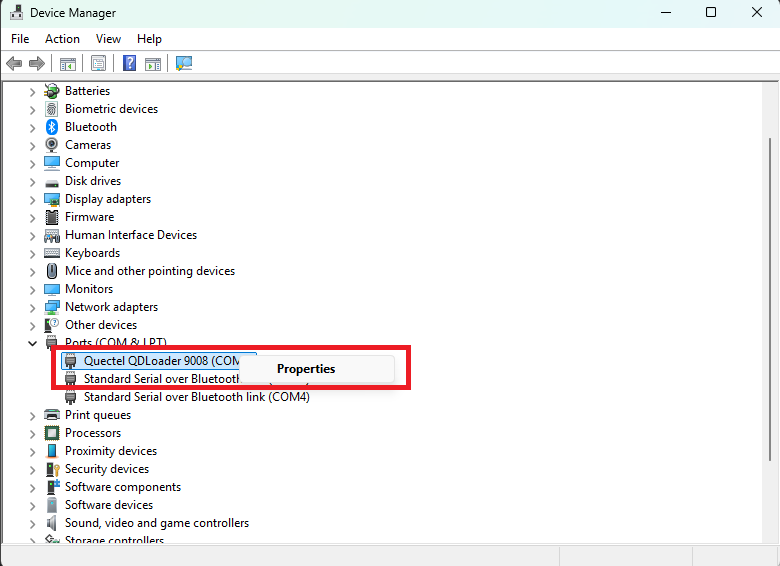 In the **General** tab, click **Change settings**. Windows prompts for elevated privileges — accept the prompt to continue.
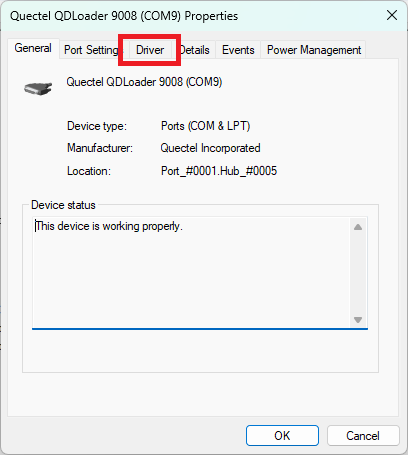
 In the updated Properties window, click the **Driver** tab.
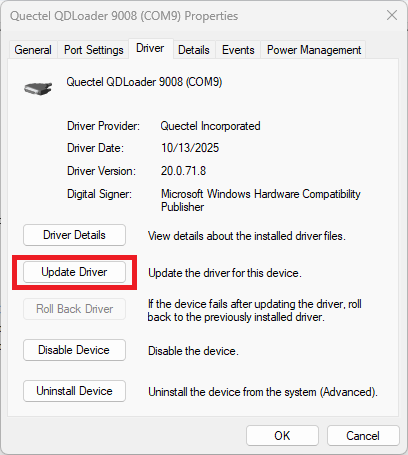
 On the **Driver** tab, click **Update Driver**.
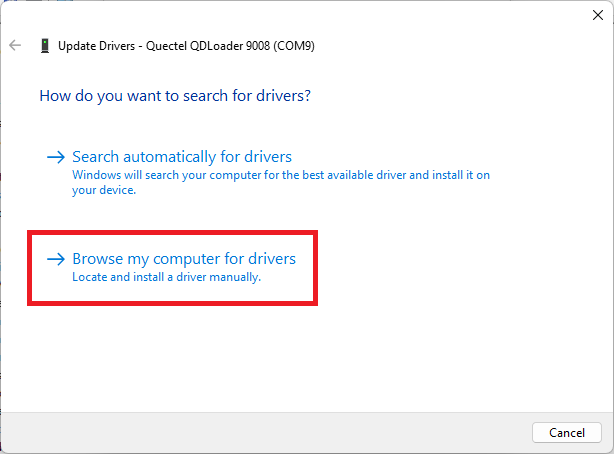
 Select **Browse my computer for drivers**.
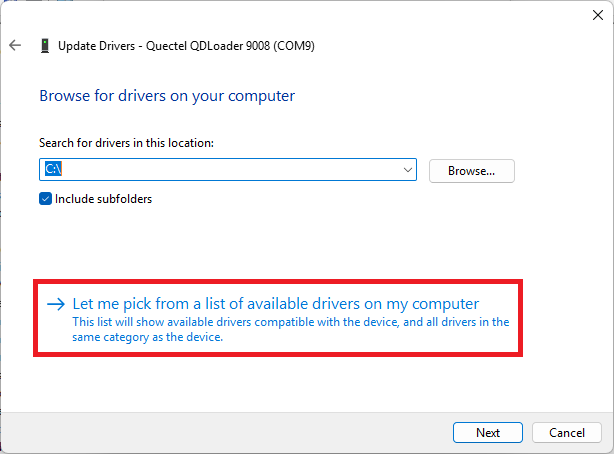
 Click **Let me pick from a list of available drivers on my computer**.
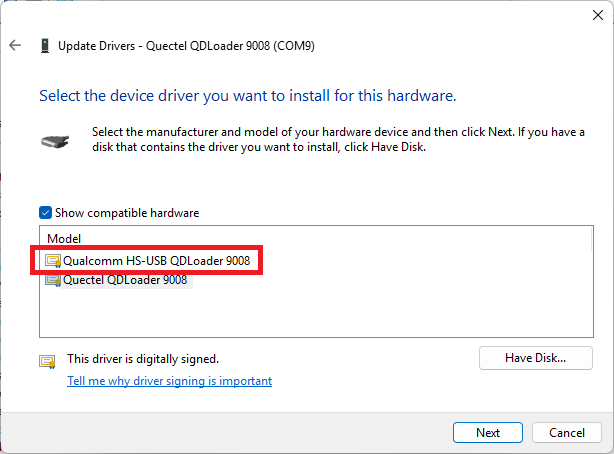
 From the list, select **Qualcomm HS-USB QDLoader 9008** and click **Next**.
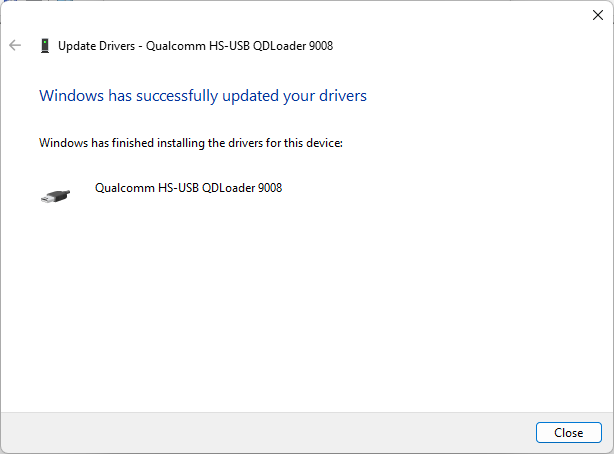
 Windows installs the driver and confirms success. Click **Close**.
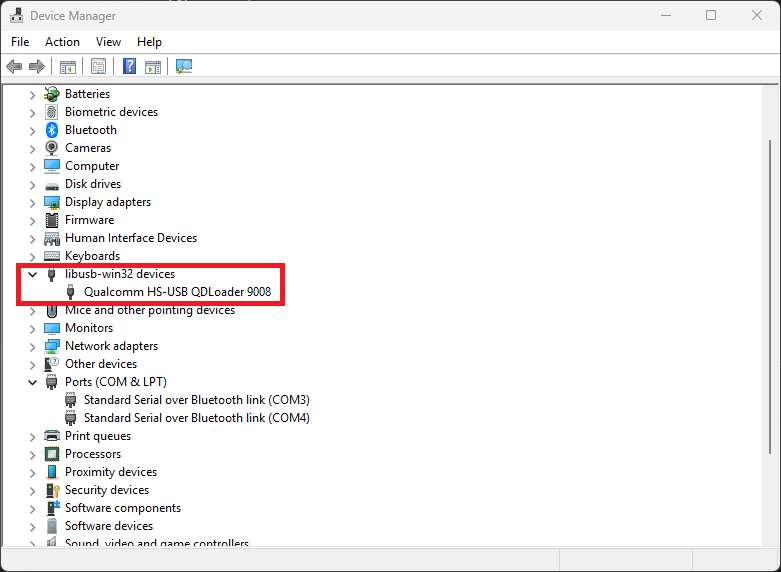
 The device now appears under **libusb-win32 devices** as **Qualcomm HS-USB QDLoader 9008**.
 Return to Qualcomm® Launcher and retry the flash. The process should now proceed successfully.
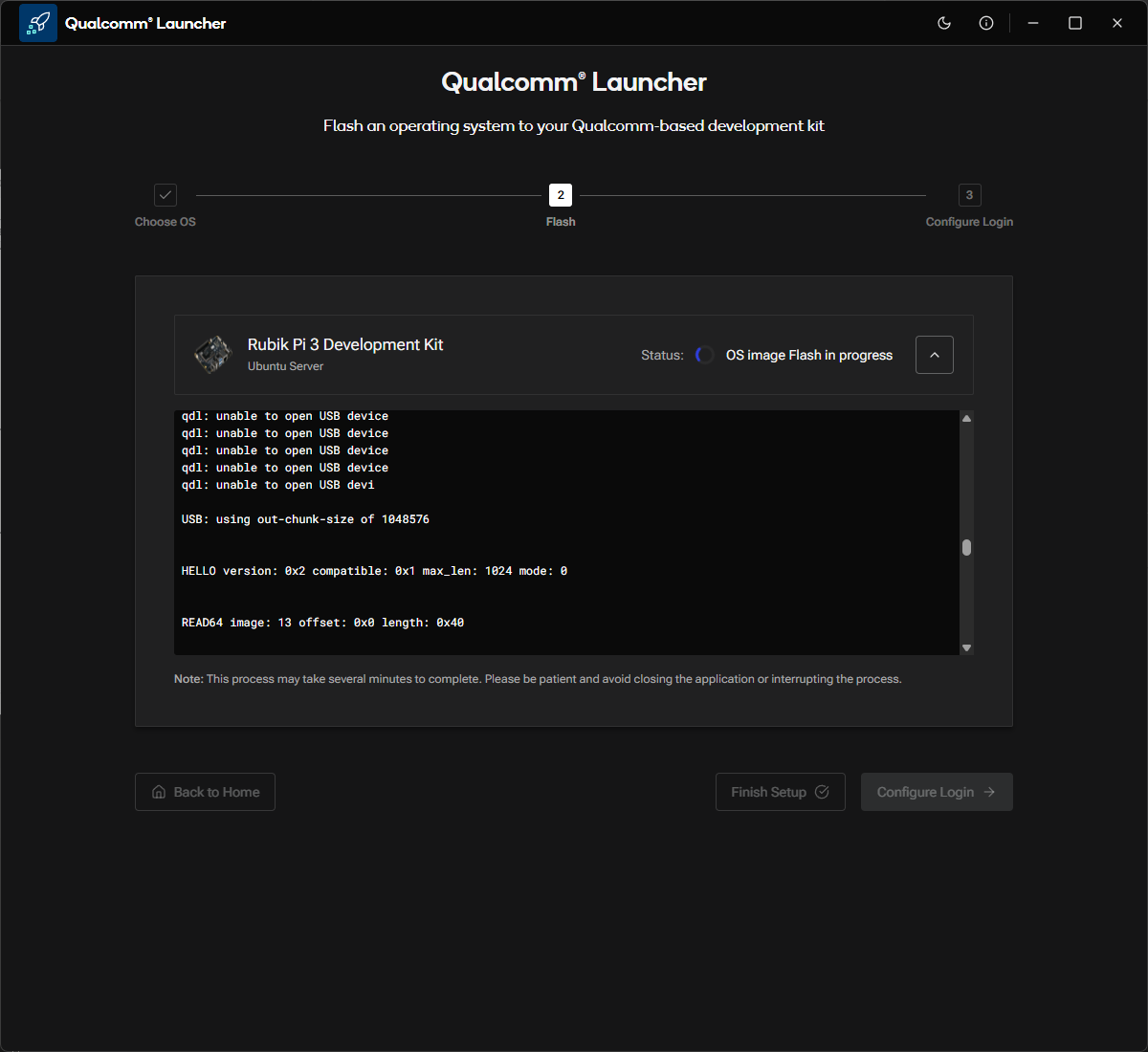 The USB driver conflict is resolved and flashing can proceed.
After flashing is complete, you can revert to the previously installed driver
by repeating these steps and selecting it from the driver list.
The USB driver conflict is resolved and flashing can proceed.
After flashing is complete, you can revert to the previously installed driver
by repeating these steps and selecting it from the driver list.